From a full month to a clear next step.
A practical walkthrough of the 2027 Monthly Digital Planner, using real pages and a fictional example you can adapt to your own week.
Follow one example from month to week.
The images below show the actual blank iPad edition. The completed example entries alongside them are fictional teaching examples, not a customer testimonial. Your purchased PDF starts blank.
Start with the dates you already know
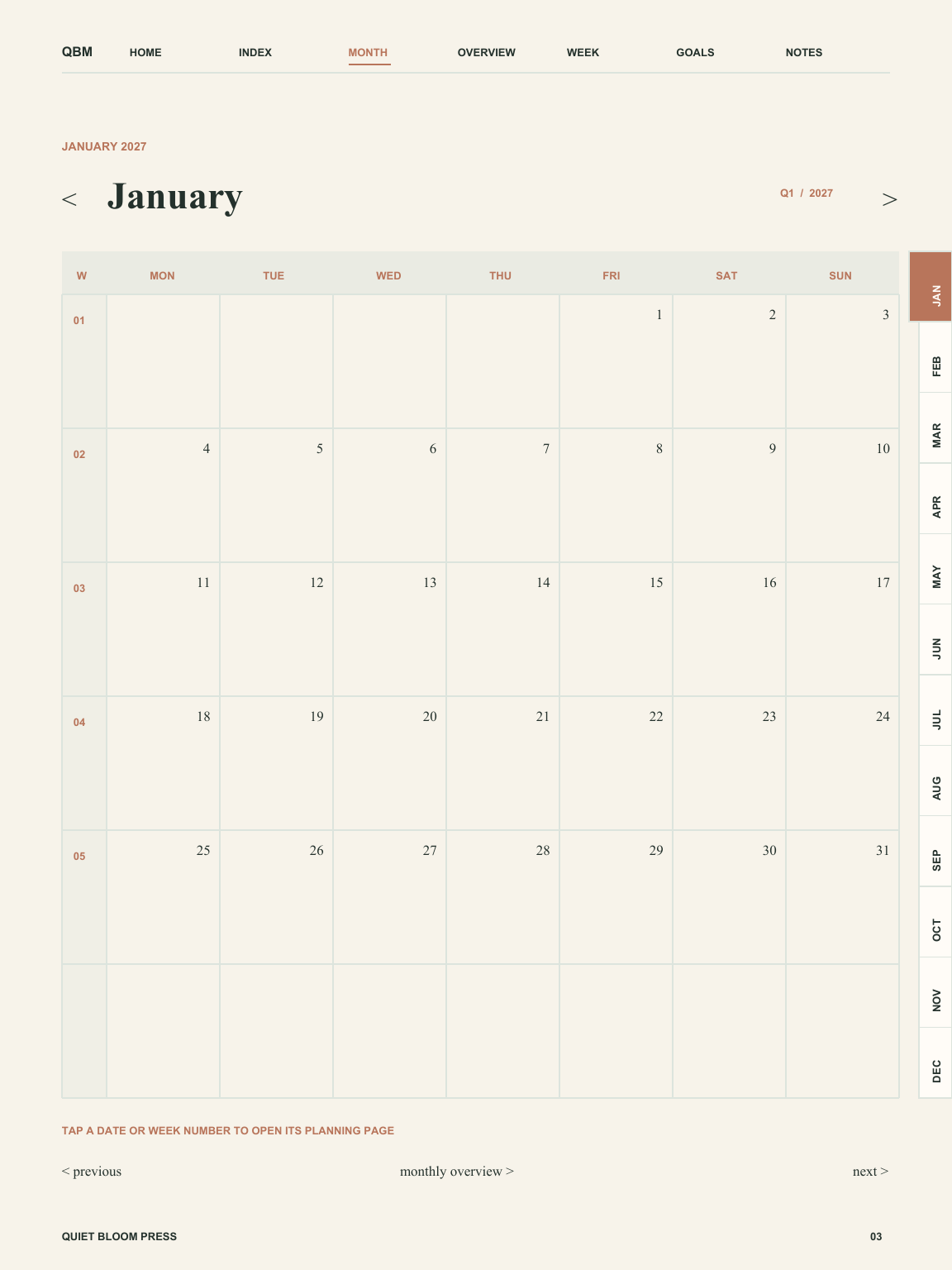
Open the monthly calendar and mark fixed commitments before adding more work. Leave room for rest and unexpected tasks.
Example entries
- January 1
- New Year: keep the day free.
- January 15
- Send the finished project proposal.
- January 31
- Review the month and choose what carries forward.
Decide what enough looks like
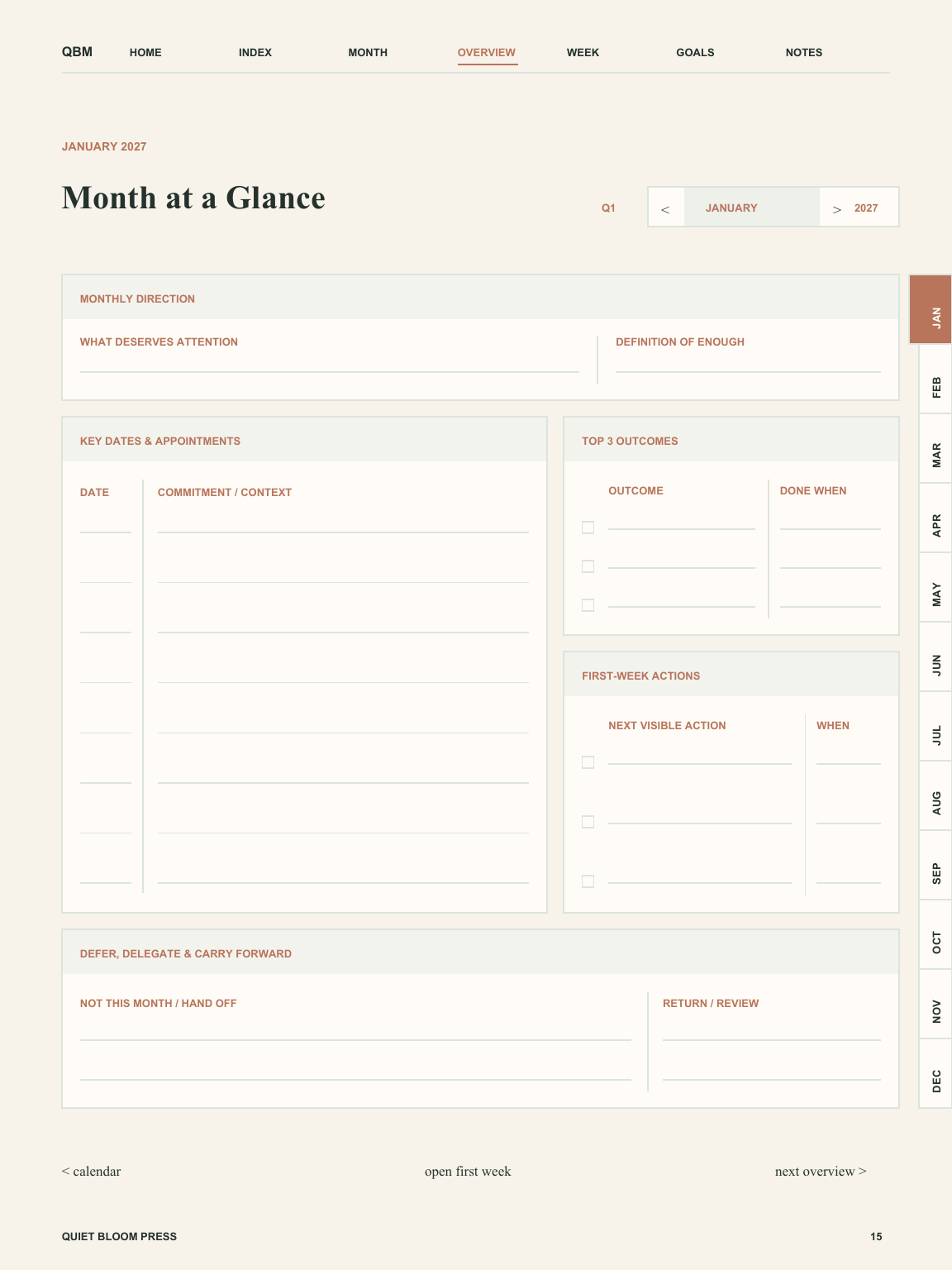
Use Month at a Glance to connect a few outcomes to a clear finish line. Write down what you will defer as well as what you will do.
Example entries
- What deserves attention
- Finish one project proposal without filling every evening.
- Definition of enough
- One reviewed proposal sent by January 15.
- Top 3 outcomes / Done when
- Proposal complete / sent to the client.
- Next visible action / When
- Write a rough outline / January 2, 10 a.m.
- Not this month / Return
- Website redesign / review in February.
Give the next action a place in your week
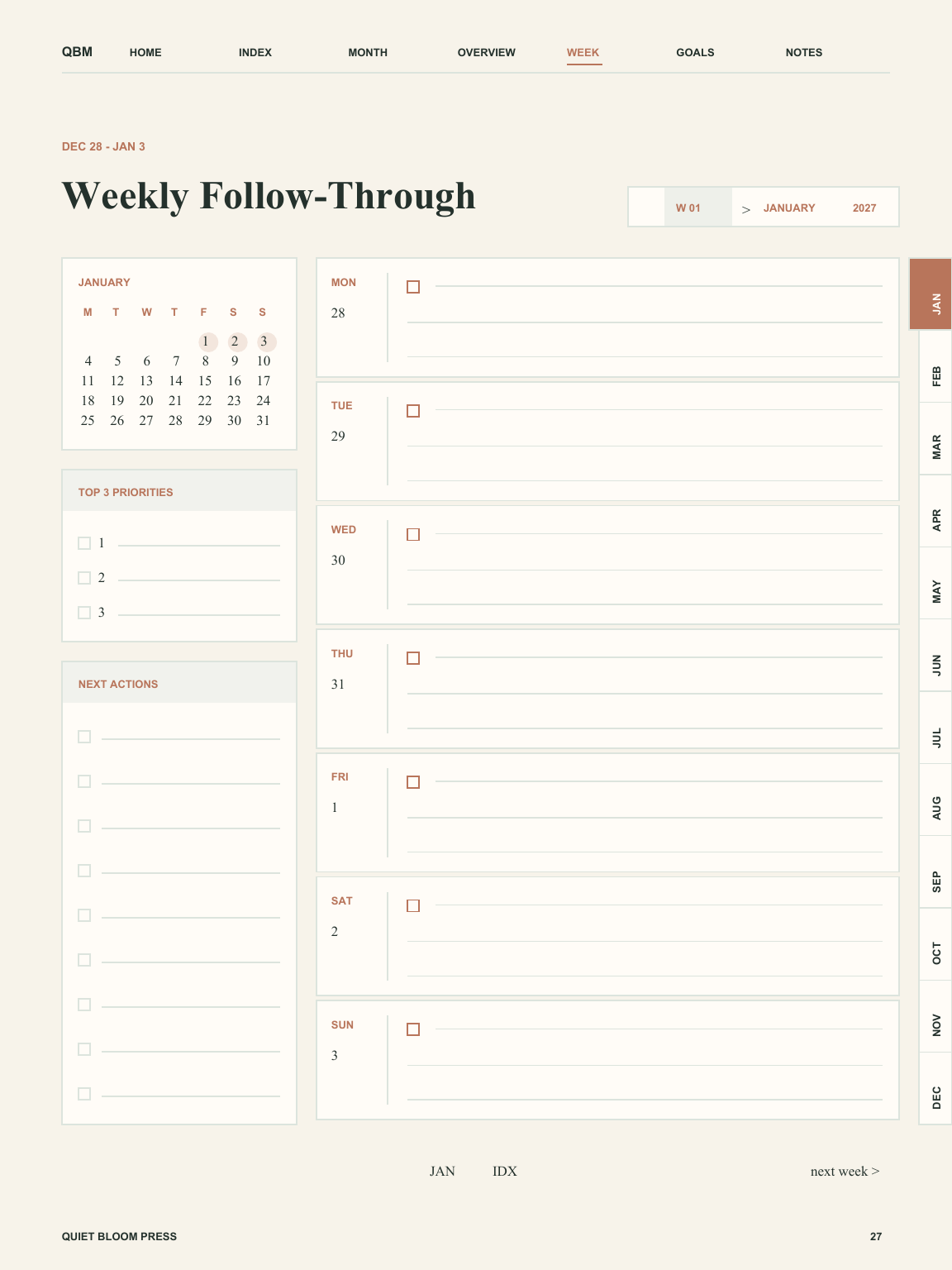
The first weekly page spans December 28–January 3. Put your next action on the right date, then use the priorities and next-actions areas to keep the week focused.
Example entries
- Top 3 priorities
- Make a clear start on the proposal.
- Next actions
- Collect the brief; draft three section headings.
- Saturday, January 2
- 10–10:30 a.m.: outline the proposal.
- Sunday, January 3
- Review the outline; schedule the first draft next week.
Ready to try your own plan? Open the interactive preview to write on a sample page. Browser preview marks stay in your browser and are not added to the downloaded file.
Import your PDF into Goodnotes.
You need an iPad and a compatible PDF annotation app. Goodnotes and the device are sold separately. This guide covers the iPad edition; compare other device editions here.
- Save the PDF. Download the free sample above to Files on your iPad. After buying, sign in to your Quiet Bloom library, prepare your planner, and download the full PDF.
- Import it as a new document. In Goodnotes, open the Documents tab, choose + New, then Import. Select the saved PDF and choose Open.
- Check navigation. Tap a linked planner element to move between pages. If your current tool draws instead, use Read Only Mode and try the link again. Switch back to editing to write.
- Try a mark and keep a backup. Write a short note, undo it, and check that the page is comfortable to use. Keep the original downloaded PDF in Files so you can import a fresh copy later.
App controls can change. See Goodnotes’ official file import guide and Read Only Mode guide. Instructions checked November 18, 2026.
Know what happens after purchase.
What do I receive?
For $24 USD once, you receive the selected 85-page, January–December 2027 hyperlinked planner PDF edition. Sign in before checkout; access appears in your library after confirmed payment. Prepare and download it during the 30-day regeneration window. Keep the downloaded file under the personal-use license. See the delivery policy for details.
What if I need help or a refund?
Before downloading, you can request cancellation within 14 days of purchase for a full refund. After download, refunds are generally limited to duplicate purchases, materially defective files, or failures Quiet Bloom cannot reasonably correct. Report technical delivery problems within 30 days. Statutory rights take priority; the full refund policy applies.
Use the private support form with your planner name, edition, purchase email, and a short description. Never send card numbers. The current support target is a reply within two business days.
Who makes this planner?
Published by Quiet Bloom Press. The Monthly Clarity Collection combines monthly calendars, outcome planning, weekly follow-through, and notes in one linked PDF. The preview images above are taken from its iPad edition. Quiet Bloom Press provides the planner and purchase support; Goodnotes provides its own app and app support.